Supercharging Zed with Locally-Hosted Embeddings


At time of writing, one of the Zed editor's missing features for AI-powered development is the usage of AI-usable indexes and embeddings of the codebase for answering larger questions about the codebase without having to do greps or plaintext searches through files.
Claude Context helps fill this gap by providing embeddings and code search to your favorite tool-compatible LLM via a locally running MCP server. This greatly helps with searching your codebase, like when refactoring or in queries like "help me understand all usages of this function". Not only is this free (save for the additional compute/memory/electricity needed), but is it relatively straightforward to set up. This will also help you save on tokens since your model of choice should be able to reason about your codebase more effectively now.
Setting up the Claude Context MCP
See the Claude Context quickstart here: https://github.com/zilliztech/claude-context/blob/master/docs/getting-started/quick-start.md
There's three major components to running Claude Context:
- The Claude Context MCP - this will need to be set up as a custom MCP in Zed.
- Ollama - A way to easily run LLMs locally.
- Milvus - A local vector database that Claude Context relies on.
Ollama
Ollama is one of the most straightforward parts to set up. This guide assumes you have a machine that is capable of running an embedding model, like nomic-embed-text.
Download Ollama from here: https://ollama.com/download
Once installed, pull the model by running the following in a terminal:
ollama pull nomic-embed-text:latest
You should see an output like
pulling manifest
pulling 970aa74c0a90: 100% ▕██████████████████████████████████████████████████████▏ 274 MB
pulling c71d239df917: 100% ▕██████████████████████████████████████████████████████▏  11 KB
pulling ce4a164fc046: 100% ▕██████████████████████████████████████████████████████▏   17 B
pulling 31df23ea7daa: 100% ▕██████████████████████████████████████████████████████▏  420 B
verifying sha256 digest
writing manifest
success
Which indicates the download was successful.
From here, the embedding model should be ready. Keep in mind you will need to start Ollama before using Claude Context always.
Milvus
Milvus is slightly more complicated to set up locally. I recommend using the Docker Compose instructions, which requires some Docker install already present. For a Mac, you can accomplish installing Docker through one of a variety of ways:
- Docker Desktop, free for personal use
- OrbStack, free for personal use
- Colima/Lima, permissive license for personal and commercial use
Below is how you start Milvus once you've installed Docker.
wget \
    https://github.com/milvus-io/milvus/releases/download/v2.6.7/milvus-standalone-docker-compose.yml \
    -O docker-compose.yml

docker compose up -d

# Check if services are healthy with
docker compose logs
The official instructions say to run docker compose as root, I don't believe is necessary on a Mac or when using a managed install of Docker like Docker Desktop or OrbStack.
Claude Context MCP in Zed
Now, which the other services started, you can now focus on setting up Zed to use Claude Context.
First, be sure you have a recent version of NodeJS installed:
brew install node@25
In your Zed settings, add the following section to the context_servers block:
{
  // ...
  "context_servers": {
    "claude-context": {
      "enabled": true,
      "command": "npx",
      "args": ["@zilliz/claude-context-mcp@latest"],
      "env": {
        "MILVUS_ADDRESS": "127.0.0.1:19530",
        "EMBEDDING_PROVIDER": "Ollama",
        "OLLAMA_HOST": "http://127.0.0.1:11434",
        "OLLAMA_MODEL": "nomic-embed-text",
      },
    },
    // ...
  },
  // ...
}
To verify that there were no problems starting Claude Context, go to the Agent panel -> Settings. You should see a green light next to claude-context and that it is providing four tools.
Usage
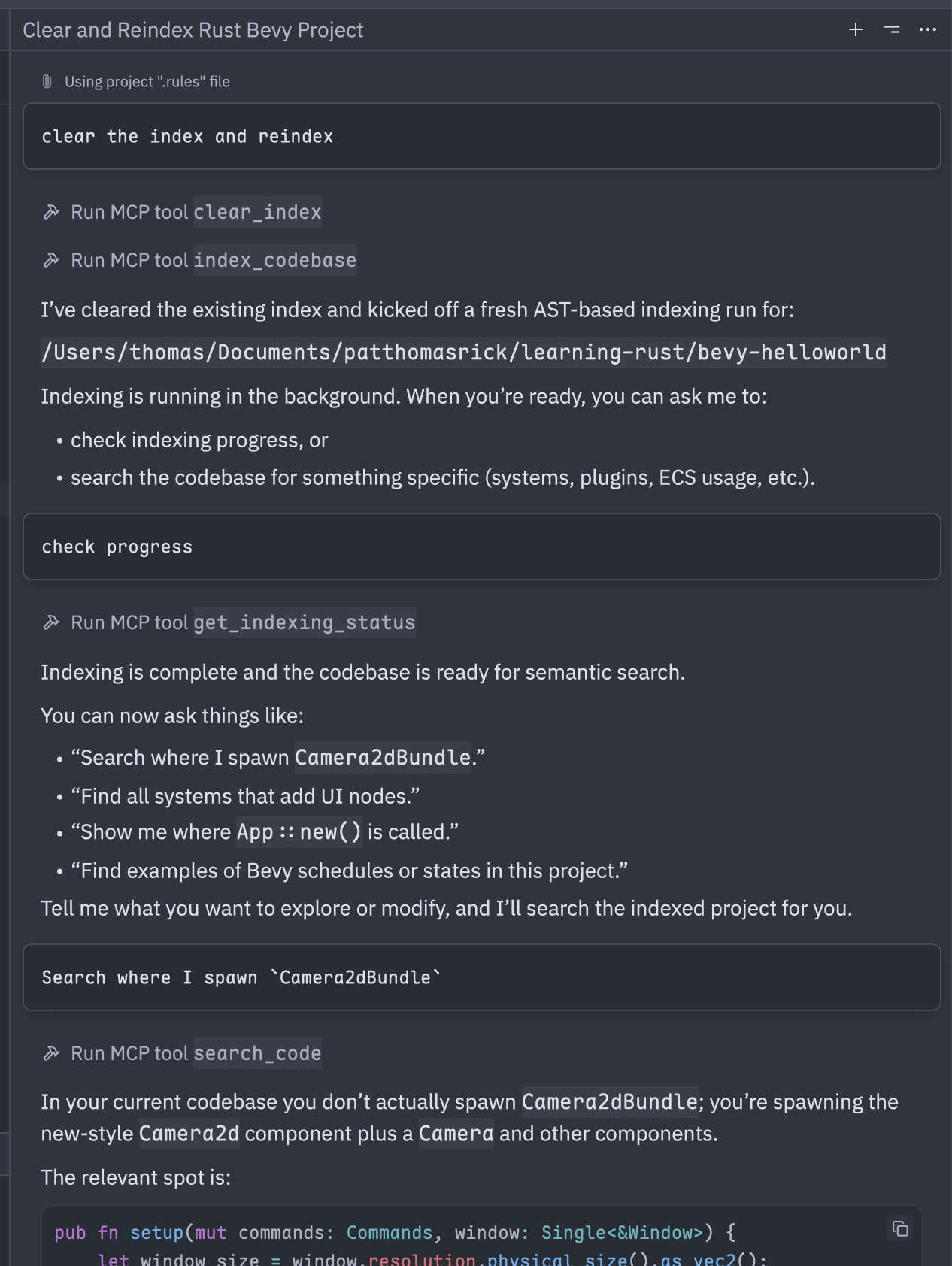
You now should be able to converse with your model and use the new tool; see below where I asked a simple question on a repo where I was learning Bevy:
Other Helpful Settings
- I highly recommend adding a .rules file or equivalent with a blurb like "Always try use your Claude MCP tools FIRST for answering questions and searching the code base (
search_code,index_codebase,get_indexing_status,clear_index). Index the code base first if you need to, check indexing status withget_indexing_status, and then search viasearch_code." This helps whatever model you are using remember to use the Claude Context tools first, since it is really more optimal to start there rather than grep through files.